> ## Documentation Index
> Fetch the complete documentation index at: https://docs.parahelp.com/llms.txt
> Use this file to discover all available pages before exploring further.
# Automations
> An Internal Agent task that runs on a schedule or a trigger.
An automation is an Internal Agent task that runs on a schedule, like every weekday at 9am, or a trigger, like a GitHub PR merging (see [Tasks](/platform/tasks)).
Common use cases: daily performance reports, knowledge gap detection, learning from tickets a human handled, proposing knowledge updates when a PR merges, following up with customers after a bug is fixed, and outage detection.
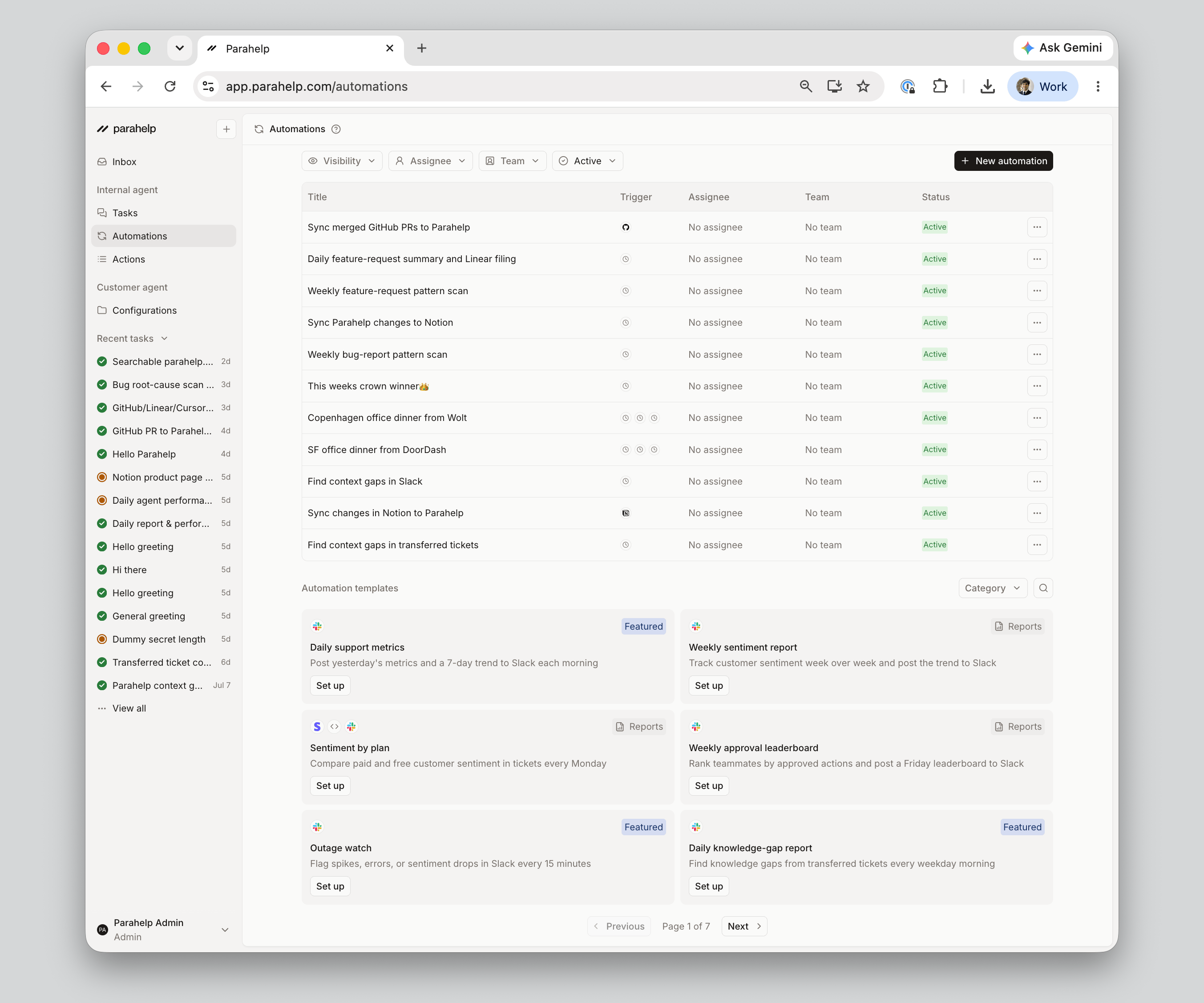 Set up automations on the "Automations" page. It shows all existing automations and includes templates for common setups.
When an automation finds a high-leverage improvement, the Internal Agent creates a todo with the relevant context and attributes, assigned to the right user or team - see [Improve](/internal-agent/improve).
## Trigger
An automation fires based on one of these trigger types:
* **Schedule:** runs on a fixed cadence, such as every weekday at 9am. Good for recurring reports.
* **Events:**
* **GitHub event:** runs when an issue is created or a pull request is merged in a connected repo. Good for release-impact checks or syncing technical changes into the Customer Agent.
* **Linear event:** runs when an issue is created or moves to a specific status. Good for closing the loop with customers when a bug is marked Done.
* **Notion event:** runs when a page is created or updated in a connected workspace. Good for keeping the Customer Agent in sync with policy or runbook changes.
## Prompt
The prompt is the instruction the Internal Agent runs every time the automation fires. For example:
> Every weekday at 9am, look at yesterday's transferred tickets, identify patterns the Customer Agent should have known, draft memory updates for review, and post a summary in #customersuccess in Slack.
## Auto-approve
By default, every action in an automation run waits for manual approval. You can set specific tools to auto-approve in an automation: on the Automations page, edit the automation via "…" and pick the actions to allow under "Auto-approve." Tasks started by the automation inherit its auto-approve settings.
## Visibility
An automation is either **private** (visible to you) or **shared** (visible to your team). Triggered runs inherit the automation's visibility.
## Run limits
You can cap how many times an automation is allowed to run before it stops automatically. Useful for short-lived monitoring, such as "for the next 3 days, check yesterday's tickets and DM me if the new refund policy looks off." When the limit is reached, the automation auto-disables.
Set up automations on the "Automations" page. It shows all existing automations and includes templates for common setups.
When an automation finds a high-leverage improvement, the Internal Agent creates a todo with the relevant context and attributes, assigned to the right user or team - see [Improve](/internal-agent/improve).
## Trigger
An automation fires based on one of these trigger types:
* **Schedule:** runs on a fixed cadence, such as every weekday at 9am. Good for recurring reports.
* **Events:**
* **GitHub event:** runs when an issue is created or a pull request is merged in a connected repo. Good for release-impact checks or syncing technical changes into the Customer Agent.
* **Linear event:** runs when an issue is created or moves to a specific status. Good for closing the loop with customers when a bug is marked Done.
* **Notion event:** runs when a page is created or updated in a connected workspace. Good for keeping the Customer Agent in sync with policy or runbook changes.
## Prompt
The prompt is the instruction the Internal Agent runs every time the automation fires. For example:
> Every weekday at 9am, look at yesterday's transferred tickets, identify patterns the Customer Agent should have known, draft memory updates for review, and post a summary in #customersuccess in Slack.
## Auto-approve
By default, every action in an automation run waits for manual approval. You can set specific tools to auto-approve in an automation: on the Automations page, edit the automation via "…" and pick the actions to allow under "Auto-approve." Tasks started by the automation inherit its auto-approve settings.
## Visibility
An automation is either **private** (visible to you) or **shared** (visible to your team). Triggered runs inherit the automation's visibility.
## Run limits
You can cap how many times an automation is allowed to run before it stops automatically. Useful for short-lived monitoring, such as "for the next 3 days, check yesterday's tickets and DM me if the new refund policy looks off." When the limit is reached, the automation auto-disables.